Prerequisites
Be sure you follow ALL Prerequisite steps Prior to opting in. If you have not met all the prerequisites above, Please contact your Company Administrator.
- Your social media account is provisioned by your Smarsh Admin in the platform.
- If you need to archive a company page your Smarsh Admin in the platform need to enabled company provisioning for you.
- If you intend to archive a Company Page and not just the LinkedIn profile:
- In order to archive a Company Linked in Page, as per LinkedIn's requirements, you'll need to be a "Super Admin" on the LinkedIn Company Page. Please See 'Additional Information' section for more information on LinkedIn's requirements for Company Page Capture.
Step 1
Please locate the Email from Smarsh asking you to opt-in for social media archiving, (Example Below), and click on the word Linkedin to be redirected to Linkedin for opting-in.
- This email sometimes gets sent to Spam or Junk folders, and the Subject line will read "Activation Required: Smarsh Social Media Archiving."
- Note: These automated emails for Social Media Activation come from the address "no_reply@smarsh.com" Please ensure this email address is not set to go to your spam or junk folder and is not being blocked by any mailbox or server level filters.
- Note: * If you have not received an authorized email, please reach out to your Company Administrator.
Step 2
- Once redirected to the LinkedIn website please log in using the account you would like to archive.
- NOTE: If you need to archive more than one LinkedIn account (profile or page with a separate login for LinkedIn) under one Smarsh User, you can reuse the same email opt-in link and use the "Not you?" Button to sign into another account and authorize the second LinkedIn account pages and profiles.
Step 3
- Click Allow to enable Smarsh to archive your social media activity for that network.
Step 4
The next page displays all accounts for which you are an administrator.
- If you need to archive your individual profile, choose "Archive as User" from the drop-down for that account.
- If you need to archive a page representing your company as a whole, or a page with yourself as the represent of a companychoose "Archive as Company" from the drop-down for that account.
- Per LinkedIn's Requirements-In order to archive a Company Linked in Page, as per LinkedIn's requirements, you'll need to be a "Super Admin" on the LinkedIn Company Page. Please See 'Additional Information' section for more information on LinkedIn's requirements for Company Page Capture.
- Proper set up for archiving a Social Media Company Page
- If you need to archive a Groups page, you can choose "Archive as company"
- Per LinkedIn's Requirements- If you need to archive a Groups Page, you are required to archive your LinkedIn Profiles as well.
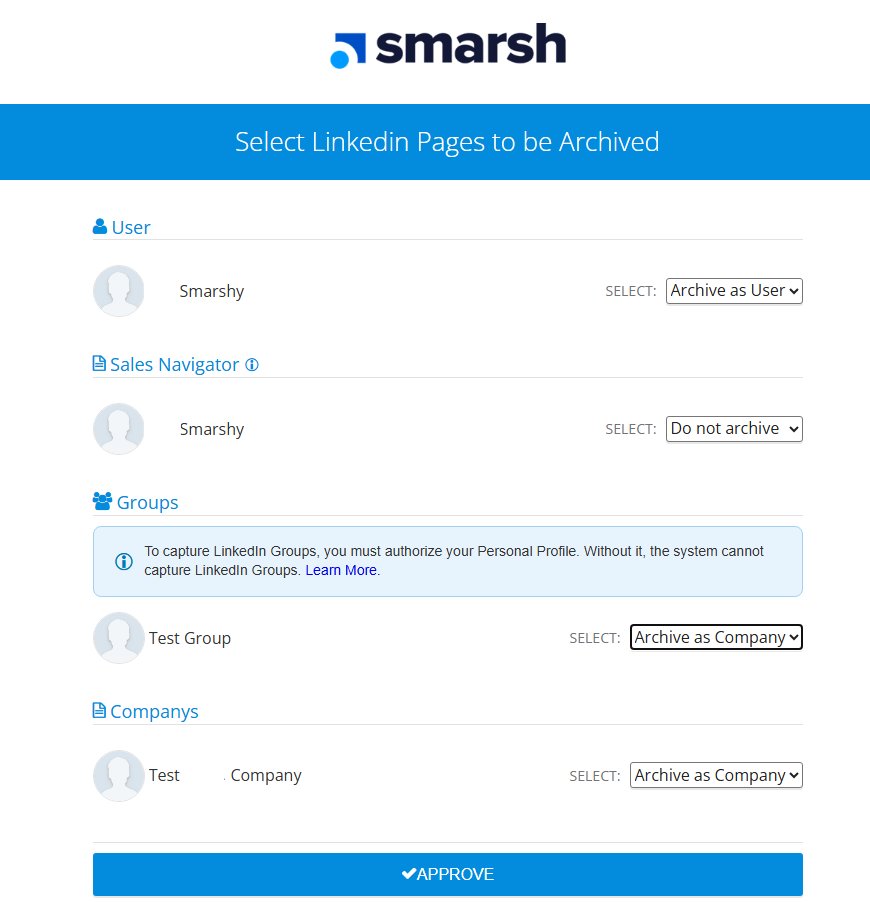
- NOTE: For LinkedIn, all users will see an option to select LinkedIn Sales Navigator.
A tool tip with a link enables users to verify if they have Sales Navigator. If users don’t have Sales Navigator or if they wish not to archive Sales Navigator content, the field must be set to Do not archive.
Step 5
- Ensure you see the following message after opting-in to verify that the connection was successful.
Step 6
Authorizing completed. Please work with your Company Admins to confirm your Linkedin page is now archiving.
- Note: * If you receive an error during this process, please reach out to your Company Administrator or contact Smarsh Support at 1-866-762-7741, Option 2 for Support.