Prerequisites
Be sure you follow ALL Prerequisite steps Prior to opting in. If you have not met all the prerequisites above, Please contact your Company Administrator.
- Your social media account is provisioned by your Smarsh Admin in the platform.
- If you need to archive a company page, your Smarsh Admin in the platform need to enabled company provisioning for you.
-
In order to archive Facebook, you must use a Facebook Page, associated to your Facebook Profile. The Facebook Page is a requirement of Facebook for approval of the API permissions that allows Smarsh to capture data. Instructions on Facebook's website can be found here Creating a Facebook Business Page.
-
NOTE: Facebook Personal Profiles will not archive posts or personal messages due to Facebook's limitations. We can only capture the profile name and the email address associated with the profile. Facebook does not allow Archiving of Personal Profiles and Posts You do not need to opt-in your personal profile unless your company requires the above details to be captured. If you are not sure, please reach out to your compliance team.
- NOTE: The personal Facebook profile that is connected to the business page you intend to archive must remain active in order to continue archiving your company page to Smarsh. If you deactivate the personal Facebook Profile used to authorize the Smarsh connection to the business page, Facebook will revoke the connection and your business page will no longer archive to Smarsh.
-
The associated Facebook page must be set to Published in Page Visibility settings.
Step 1
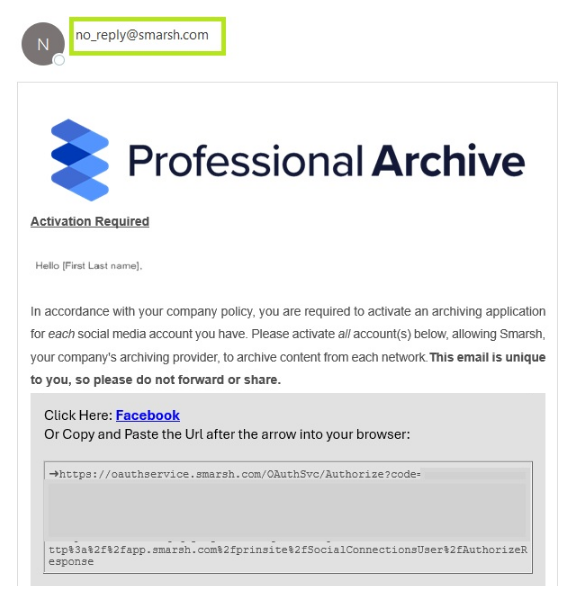
Please locate the Email from Smarsh asking you to opt-in for social media archiving, (Example Below)
-
This email sometimes gets sent to Spam or Junk folders, and the Subject line will read "Activation Required: Smarsh Social Media Archiving."
-
Note: These automated emails for Social Media Activation come from the address "no_reply@smarsh.com" Please ensure this email address is not set to go to your spam or junk folder and is not being blocked by any mailbox or server level filters.
-
Note: * If you have not received an authorized email, please reach out to your Company Administrator.
-
Click the link that says "Facebook"
Step 2
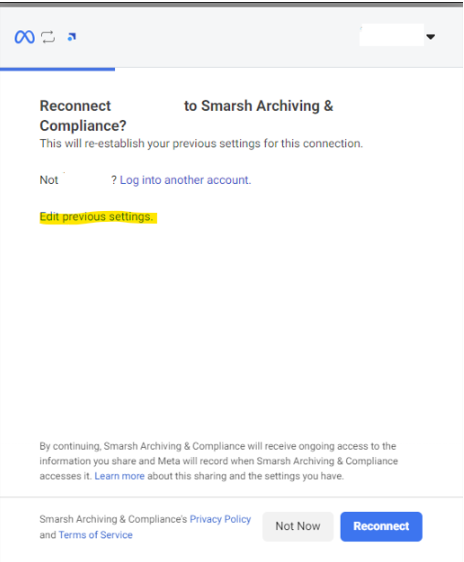
- Login with your Facebook credentials.
- Note: Ensure you're logging in under the correct profile. If you need to log into a different profile, please use the "log into another account" option.
Step 3
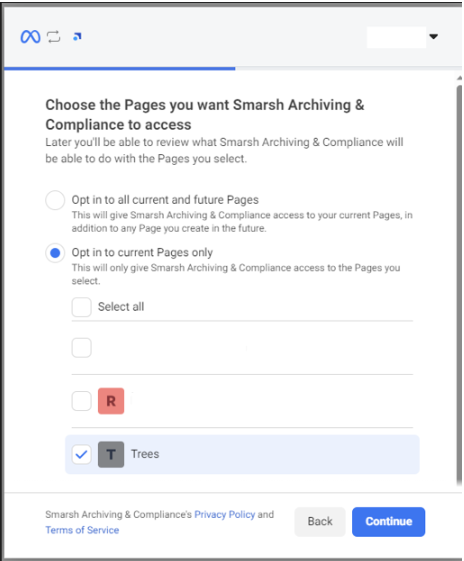
- On this page select, "Opt in to current Pages only," and then Select ONLY the Facebook page(s) you wish to archive.
Step 4
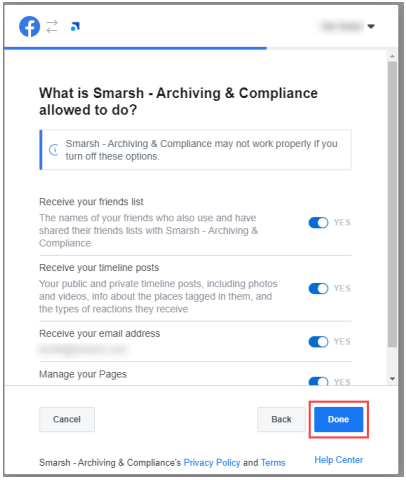
- Select "Yes" for each of these options on the screen below, if you do not, archiving will not function properly.
- NOTE: You must approve all permissions on your Facebook account. The API that Facebook uses for compliance requires the approval of these permissions, however, Smarsh is only using this API to receive communication for archiving and will not manipulate your Facebook account in any way.
Step 5
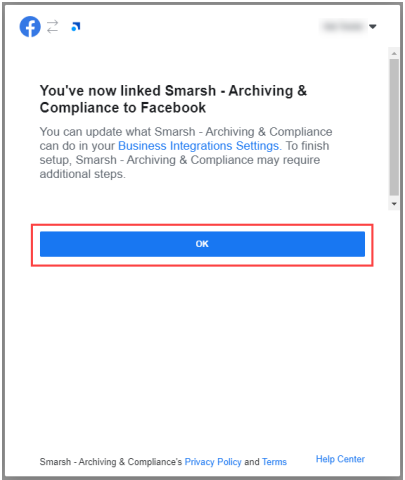
- Read the statement and click "OK"
Step 6
Authorize or restrict archiving connection based on the options in the dropdown menu on the listed Users and Pages. Click Approve to finalize the change.
Method 1:
Correct Company Page Opt-in for Company Page, that represents a Company as a whole:

Method 2:
Correct Business Page Opt-in, for an individual's Business Page that represents their own professional activity:

Step 7
- Click Approve
- The message Profile successfully authorized appears.
- Authorizing completed. Please work with your Company Admins to confirm your Facebook page is now archiving.

Note: * If you receive an error duing this process, please reach out to your Company Administrator.